Increasing disk space of a Red Hat virtual image with PureApplication

Originally posted on IBM Developer blog “Exploring PureApplication System, Software Service and more”  by Jonathan Deberdt on 31 May 2016 (10073 visits)

Virtual images are the base component of every virtual machine. On IBM PureApplication System (Intel-based) and Service, IBM provides some virtual images called “IBM OS Image for Red Hat Linux Systems”. In your catalog, you can also have virtual images coming from Hypervisor Editions of IBM products or some other virtual images that you have imported, cloned or customized. These virtual images have a defined disk space available but sometimes you need more. To get a larger disk space you can use add-ons in your patterns or increase the disk space within the virtual image.

Unfortunately, increasing the disk space of a virtual image is not straightforward and we will explain here how to do this.

Note: The method described here creates a new partition. Another method is to resize an existing partition, this method is described in my first comment on this article.

1. Creating a new image with a larger disk

First step is to create a new image with a larger disk. The easiest way to do this is to clone an existing image from the catalog.

Once logged in the PureApplication administrative console, go to Catalog -> Virtual Images.

Select the image you want to start with and click the Clone button.

Tip: this virtual image will be a temporary one. We will create the final one later. That’s why I set the version number to 0.9 in this step and the final is tagged as v1.0 in the next step. Choose carefully the name and version number of the virtual images you’ll create. Using an existing name for the virtual image but a different version number can be useful if you already have patterns that use this image : you then can change the image in your pattern by selecting the right version number instead of having to rebuild your pattern.

This will open a popup window. Fill the General information section and click on the Hardware configuration link to change the size of the virtual disk. Here we will increase from 12GB to 40GB.

Click OK. It takes a few minutes to create the new image.

2. Enlarging the file system

Unfortunately, changing the hardware configuration is not sufficient… You need a few steps to make this larger disk available for files. In order to make these steps persistent, we will use the “extend and capture” feature of PureApplication.

We need to:

  1. extend the image
  2. connect to the deployed image and choose where we want to add space
  3. create a new partition
  4. create a new physical volume
  5. extend the volume group
  6. extend the logical volume
  7. resize the file system
  8. capture the modified image

2.1 Extend the image

Select the new image you have created in previous step and click the Extend button.

This will create a Classic Virtual System pattern with your virtual image and deploy it once.

Fill the General information section and Deployment configuration section. The requested password is for root user.

After a few minutes, the status of the extended image is set to Draft and the image is deployed as you can see in line In the cloud now. Click on this link to view the deployed instance.

On the instance page, expand the Virtual machines section to get the IP address or hostname of your VM (line Network interface 1 in the Hardware and network sub-section).

2.2 Connect to the deployed image and choose where we want to add space

Connect through SSH to the virtual machine. You can use the Log In link provided by the PureApplication console (see screenshot above) or a tool such as PuTTY on Windows or a Terminal on Linux or MacOS. Log as root with the password you have provided in the deployment configuration.

Type fdisk -l to list the current disk partitions.

 -bash-4.1# fdisk -l

 Disk /dev/sda: 42.9 GB, 42949672960 bytes
 255 heads, 63 sectors/track, 5221 cylinders
 Units = cylinders of 16065 * 512 = 8225280 bytes
 Sector size (logical/physical): 512 bytes / 512 bytes
 I/O size (minimum/optimal): 512 bytes / 512 bytes
 Disk identifier: 0x000738bb

    Device Boot      Start         End      Blocks   Id  System
 /dev/sda1   *           1          32      256000   83  Linux
 Partition 1 does not end on cylinder boundary.
 /dev/sda2              32        1567    12325888   8e  Linux LVM

 Disk /dev/mapper/vg_root-LogVol01: 2147 MB, 2147483648 bytes
 255 heads, 63 sectors/track, 261 cylinders
 Units = cylinders of 16065 * 512 = 8225280 bytes
 Sector size (logical/physical): 512 bytes / 512 bytes
 I/O size (minimum/optimal): 512 bytes / 512 bytes
 Disk identifier: 0x00000000


 Disk /dev/mapper/vg_root-LogVol00: 10.5 GB, 10473177088 bytes
 255 heads, 63 sectors/track, 1273 cylinders
 Units = cylinders of 16065 * 512 = 8225280 bytes
 Sector size (logical/physical): 512 bytes / 512 bytes
 I/O size (minimum/optimal): 512 bytes / 512 bytes
 Disk identifier: 0x00000000 

As you can see on first line, the disk /dev/sda is 42.9 GB large but only 2147 MB and 10.5 GB are used by /dev/mapper/vg_root-LogVol01 and /dev/mapper/vg_root-LogVol00 respectively.

The only physical disk is called /dev/sda and contains 2 partitions: /dev/sda1 and /dev/sda2.

Type df -h

 -bash-4.1# df -h
 Filesystem            Size  Used Avail Use% Mounted on
 /dev/mapper/vg_root-LogVol00
                       9.5G  2.4G  6.7G  26% /
 tmpfs                1000M     0 1000M   0% /dev/shm
 /dev/sda1             239M   55M  172M  24% /boot 

This gives you the available file system space. As you can see, /dev/mapper/vg_root-LogVol00 is mounted on /. We will extend /dev/mapper/vg_root-LogVol00 as much as possible to get more space on /.

2.3 Create a new partition

We will create a new partition on device /dev/sda.

Type fdisk /dev/sda.

 -bash-4.1# fdisk /dev/sda

 WARNING: DOS-compatible mode is deprecated. It's strongly recommended to switch off the mode (command 'c') and change display units to sectors (command 'u').


 Command (m for help):  

Type p to list the partitions.

 Command (m for help): p

 Disk /dev/sda: 42.9 GB, 42949672960 bytes
 255 heads, 63 sectors/track, 5221 cylinders
 Units = cylinders of 16065 * 512 = 8225280 bytes
 Sector size (logical/physical): 512 bytes / 512 bytes
 I/O size (minimum/optimal): 512 bytes / 512 bytes
 Disk identifier: 0x000738bb

    Device Boot      Start         End      Blocks   Id  System
 /dev/sda1   *           1          32      256000   83  Linux
 Partition 1 does not end on cylinder boundary.
 /dev/sda2              32        1567    12325888   8e  Linux LVM

 Command (m for help):  

Type n to create a new partition. As there are only 2 existing primary partitions, we will create a third primary partition. By default, fdisk proposes to use all the available space (first and last available cylinders). In this example, we will use the default values.

 Command (m for help): n
 Command action
    e   extended
    p   primary partition (1-4)
 p
 Partition number (1-4): 3
 First cylinder (1567-5221, default 1567): 
 Using default value 1567
 Last cylinder, +cylinders or +size{K,M,G} (1567-5221, default 5221): 
 Using default value 5221

 Command (m for help):  

Type p to list the partitions.

 Command (m for help): p

 Disk /dev/sda: 42.9 GB, 42949672960 bytes
 255 heads, 63 sectors/track, 5221 cylinders
 Units = cylinders of 16065 * 512 = 8225280 bytes
 Sector size (logical/physical): 512 bytes / 512 bytes
 I/O size (minimum/optimal): 512 bytes / 512 bytes
 Disk identifier: 0x000738bb

    Device Boot      Start         End      Blocks   Id  System
 /dev/sda1   *           1          32      256000   83  Linux
 Partition 1 does not end on cylinder boundary.
 /dev/sda2              32        1567    12325888   8e  Linux LVM
 /dev/sda3            1567        5221    29354770+  83  Linux

 Command (m for help):

 The new partition, /dev/sda3, is from “Linux” type. Its type ID is 83. We will change it to “Linux LVM”, type ID 8e.

Type t to change the type of our 3rd partition. Then list the partitions once again to check the configuration.

 Command (m for help): t
 Partition number (1-4): 3
 Hex code (type L to list codes): 8e
 Changed system type of partition 3 to 8e (Linux LVM)

 Command (m for help): p

 Disk /dev/sda: 42.9 GB, 42949672960 bytes
 255 heads, 63 sectors/track, 5221 cylinders
 Units = cylinders of 16065 * 512 = 8225280 bytes
 Sector size (logical/physical): 512 bytes / 512 bytes
 I/O size (minimum/optimal): 512 bytes / 512 bytes
 Disk identifier: 0x000738bb

    Device Boot      Start         End      Blocks   Id  System
 /dev/sda1   *           1          32      256000   83  Linux
 Partition 1 does not end on cylinder boundary.
 /dev/sda2              32        1567    12325888   8e  Linux LVM
 /dev/sda3            1567        5221    29354770+  8e  Linux LVM

 Command (m for help):

 Type w to write the changes in the partition table.

 Command (m for help): w
 The partition table has been altered!

 Calling ioctl() to re-read partition table.

 WARNING: Re-reading the partition table failed with error 16: Device or resource busy.
 The kernel still uses the old table. The new table will be used at
 the next reboot or after you run partprobe(8) or kpartx(8)
 Syncing disks. 

To be taken into account, the system needs to be restarted. You can use the reboot command.

2.4 Create a new physical volume

Once the virtual machine is rebooted, connect to it through SSH. You can check the current partition table using fdisk -l.

 -bash-4.1# fdisk -l

 Disk /dev/sda: 42.9 GB, 42949672960 bytes
 255 heads, 63 sectors/track, 5221 cylinders
 Units = cylinders of 16065 * 512 = 8225280 bytes
 Sector size (logical/physical): 512 bytes / 512 bytes
 I/O size (minimum/optimal): 512 bytes / 512 bytes
 Disk identifier: 0x000738bb

    Device Boot      Start         End      Blocks   Id  System
 /dev/sda1   *           1          32      256000   83  Linux
 Partition 1 does not end on cylinder boundary.
 /dev/sda2              32        1567    12325888   8e  Linux LVM
 /dev/sda3            1567        5221    29354770+  8e  Linux LVM

 Disk /dev/mapper/vg_root-LogVol01: 2147 MB, 2147483648 bytes
 255 heads, 63 sectors/track, 261 cylinders
 Units = cylinders of 16065 * 512 = 8225280 bytes
 Sector size (logical/physical): 512 bytes / 512 bytes
 I/O size (minimum/optimal): 512 bytes / 512 bytes
 Disk identifier: 0x00000000


 Disk /dev/mapper/vg_root-LogVol00: 10.5 GB, 10473177088 bytes
 255 heads, 63 sectors/track, 1273 cylinders
 Units = cylinders of 16065 * 512 = 8225280 bytes
 Sector size (logical/physical): 512 bytes / 512 bytes
 I/O size (minimum/optimal): 512 bytes / 512 bytes
 Disk identifier: 0x00000000 

Create the physical volume on the new partition using pvcreate:

 -bash-4.1# pvcreate /dev/sda3
   Physical volume "/dev/sda3" successfully created 

2.5 Extend the volume group

We will now get the name of the volume group using the vgdisplay command:

 -bash-4.1# vgdisplay
   --- Volume group ---
   VG Name               vg_root
   System ID             
   Format                lvm2
   Metadata Areas        1
   Metadata Sequence No  3
   VG Access             read/write
   VG Status             resizable
   MAX LV                0
   Cur LV                2
   Open LV               2
   Max PV                0
   Cur PV                1
   Act PV                1
   VG Size               11.75 GiB
   PE Size               4.00 MiB
   Total PE              3009
   Alloc PE / Size       3009 / 11.75 GiB
   Free  PE / Size       0 / 0   
   VG UUID               Vwenuf-OdXe-Ojtm-XWMo-XVQQ-o0L7-2q3jzA 

Extend the volume group (here vg_root) to the new partition with vgextend:

-bash-4.1# vgextend vg_root /dev/sda3
   Volume group "vg_root" successfully extended

You can check the new detailed volume group information using vgdisplay -v:

  -bash-4.1# vgdisplay -v
     Using volume group(s) on command line.
     Finding all volume groups.
   --- Volume group ---
   VG Name               vg_root
   System ID             
   Format                lvm2
   Metadata Areas        2
   Metadata Sequence No  4
   VG Access             read/write
   VG Status             resizable
   MAX LV                0
   Cur LV                2
   Open LV               2
   Max PV                0
   Cur PV                2
   Act PV                2
   VG Size               39.75 GiB
   PE Size               4.00 MiB
   Total PE              10175
   Alloc PE / Size       3009 / 11.75 GiB
   Free  PE / Size       7166 / 27.99 GiB
   VG UUID               Vwenuf-OdXe-Ojtm-XWMo-XVQQ-o0L7-2q3jzA

   --- Logical volume ---
   LV Path                /dev/vg_root/LogVol01
   LV Name                LogVol01
   VG Name                vg_root
   LV UUID                scPXkX-K6ue-jhyn-sbll-LzZj-C1fb-R8ejTG
   LV Write Access        read/write
   LV Creation host, time icon-vm-068-230.rtp.raleigh.ibm.com, 2014-02-07 15:55:35 +0000
   LV Status              available
   # open                 1
   LV Size                2.00 GiB
   Current LE             512
   Segments               1
   Allocation             inherit
   Read ahead sectors     auto
   - currently set to     256
   Block device           253:0

   --- Logical volume ---
   LV Path                /dev/vg_root/LogVol00
   LV Name                LogVol00
   VG Name                vg_root
   LV UUID                8bl26C-VZOh-elAN-X4RN-DDz1-3znH-ibaieB
   LV Write Access        read/write
   LV Creation host, time icon-vm-068-230.rtp.raleigh.ibm.com, 2014-02-07 15:55:35 +0000
   LV Status              available
   # open                 1
   LV Size                9.75 GiB
   Current LE             2497
   Segments               1
   Allocation             inherit
   Read ahead sectors     auto
   - currently set to     256
   Block device           253:1

   --- Physical volumes ---
   PV Name               /dev/sda2     
   PV UUID               WwgsZI-MmOt-IDVn-iJgr-Pevc-mNIL-eb4SZI
   PV Status             allocatable
   Total PE / Free PE    3009 / 0

   PV Name               /dev/sda3     
   PV UUID               I8OMac-EooX-kW9B-Y3Zq-XRVG-FIbz-gTIRI9
   PV Status             allocatable
   Total PE / Free PE    7166 / 7166

As you can see in the last lines, the physical volume /dev/sda3 is now part of the volume group and is free (Free PE : 7166).

2.6 Extend the logical volume

The tool to extend the mapped logical volume /dev/mapper/vg_root-LogVol00 is lvextend.

Type lvextend -l +100%FREE /dev/mapper/vg_root-LogVol00. This will extend the /dev/mapper/vg_root-LogVol00 with all available space.

 -bash-4.1# lvextend -l +100%FREE /dev/vg_root/LogVol00
   Size of logical volume vg_root/LogVol00 changed from 9.75 GiB (2497 extents) to 37.75 GiB (9663 extents).
   Logical volume LogVol00 successfully resized 

2.7 Resize the file system

Next step is to resize the file system to use the newly available space.  Use the resize2fs command on the logical volume.

 -bash-4.1# resize2fs  /dev/vg_root/LogVol00
 resize2fs 1.41.12 (17-May-2010)
 Filesystem at /dev/vg_root/LogVol00 is mounted on /; on-line resizing required
 old desc_blocks = 1, new_desc_blocks = 3
 Performing an on-line resize of /dev/vg_root/LogVol00 to 9894912 (4k) blocks.
 The filesystem on /dev/vg_root/LogVol00 is now 9894912 blocks long.

Check the partitions with fdisk -l.

 -bash-4.1# fdisk -l

 Disk /dev/sda: 42.9 GB, 42949672960 bytes
 255 heads, 63 sectors/track, 5221 cylinders
 Units = cylinders of 16065 * 512 = 8225280 bytes
 Sector size (logical/physical): 512 bytes / 512 bytes
 I/O size (minimum/optimal): 512 bytes / 512 bytes
 Disk identifier: 0x000738bb

    Device Boot      Start         End      Blocks   Id  System
 /dev/sda1   *           1          32      256000   83  Linux
 Partition 1 does not end on cylinder boundary.
 /dev/sda2              32        1567    12325888   8e  Linux LVM
 /dev/sda3            1567        5221    29354770+  8e  Linux LVM

 Disk /dev/mapper/vg_root-LogVol01: 2147 MB, 2147483648 bytes
 255 heads, 63 sectors/track, 261 cylinders
 Units = cylinders of 16065 * 512 = 8225280 bytes
 Sector size (logical/physical): 512 bytes / 512 bytes
 I/O size (minimum/optimal): 512 bytes / 512 bytes
 Disk identifier: 0x00000000


 Disk /dev/mapper/vg_root-LogVol00: 40.5 GB, 40529559552 bytes
 255 heads, 63 sectors/track, 4927 cylinders
 Units = cylinders of 16065 * 512 = 8225280 bytes
 Sector size (logical/physical): 512 bytes / 512 bytes
 I/O size (minimum/optimal): 512 bytes / 512 bytes
 Disk identifier: 0x00000000

As you can see, /dev/mapper/vg_root-LogVol00 is now 40.5 GB large.

You can also use df -h to see available space:

 -bash-4.1# df -h
 Filesystem            Size  Used Avail Use% Mounted on
 /dev/mapper/vg_root-LogVol00
                        38G  2.4G   33G   7% /
 tmpfs                1000M     0 1000M   0% /dev/shm
 /dev/sda1             239M   55M  172M  24% /boot 

2.8 Capture the modified image

Now that the deployed virtual image has been modified, we will use PureApplication capability to record these changes using the Capture function. Go back to the PureApplication administrative console and the virtual image you have extended. Click the Capture button then OK to confirm.

Now that the image has been captured, you can test it by creating a simple pattern with this image and check if this new image meets your requirements for disk space using for example the df -h command.

3. Final steps

If you need more customisation of your virtual image, you can make additional changes and recapture it.

Otherwise, it is advised to lock it so that the image will be in read-only mode. New changes to this image will require to clone or extend it.

Your virtual image is now ready to be used in your patterns.

The last steps are just cleanup. You can delete:

  • The classic virtual system instance and pattern that PureApplication has created for extend and capture. It has the name of your virtual image (see links “In the cloud now” and “Included in patterns” in your virtual image). 
  • The temporary virtual image created at first step (cloned image).

Understanding placement of VMs in PureApplication System

Originally posted on IBM Developer blog “Exploring PureApplication System, Software Service and more”  by Hendrik van Run on 12 May 2016 (5510 visits)

IBM PureApplication System uses a placement engine to control where VMs are placed. However the exact workings of the placement engine are not always fully understood. IBM recently published the developerWorks article “Where and why: Demystifying virtual machine placement in IBM PureApplication System”. Hopefully this article will help improve your understanding of the placement engine!

IBM Rational test products released as PureApplication patterns

Originally posted on IBM Developer blog “Exploring PureApplication System, Software Service and more”  by Hendrik van Run on 14 March 2016 (5705 visits)

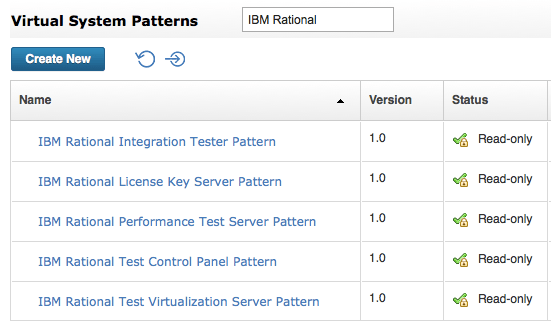
For those of you who are working with some of the IBM Rational test products, IBM has recently released the following products as a pattern for PureApplication. The Knowledge Center provides more details regarding these patterns here. I am including the actual IBM Passport Advantage part numbers here for convenience.

  • IBM Rational Integration Tester Pattern 1.0 (CN937ML)
  • IBM Rational Performance Test Server Pattern 1.0 (CN936ML)
  • IBM Rational Test Virtualization Server Pattern 1.0 (CN938ML)

You can use the following CLI script to quickly import these patterns. Note that there is no need to accept a license for the pattern type com.ibm.rational.rlks.ptype-1.0.0.0.tgz (the license for this pattern type is covered through the licenses of the other pattern types).

newpattern = deployer.patterntypes.create("/repository/Rational/com.ibm.rational.rit.ptype-1.0.0.0.tgz")
newpattern[0].acceptLicense()
newpattern[0].enable()
newpattern = deployer.patterntypes.create("/repository/Rational/com.ibm.rational.rpts.ptype-1.0.0.0.tgz")
newpattern[0].acceptLicense()
newpattern[0].enable()
newpattern = deployer.patterntypes.create("/repository/Rational/com.ibm.rational.rlks.ptype-1.0.0.0.tgz")
newpattern[0].enable()
newpattern = deployer.patterntypes.create("/repository/Rational/com.ibm.rational.rtvs.ptype-1.0.0.0.tgz")
newpattern[0].acceptLicense()
newpattern[0].enable()

Note that you will need to download the actual software separately through IBM Passport Advantage and upload this to the IBM Installation Manager repository. The aforementioned patterns rely on a set of IBM Rational product binaries to be present in the IBM Installation Manager (IIM) repository. The Knowledge Center details what part numbers to download from IBM Passport Advantage here, however at the time of writing some of these part numbers were still incorrect. Make sure to download the following:

  • IBM Rational License Key Server V8.1.4 for Linux x86 Multilingual (CIPQ0ML)
  • IBM Rational License Key Server Administration and Reporting Tool V8.1.4 Part 1 Multiplatform Multilingual (CIPT1ML)
  • IBM Rational License Key Server Administration and Reporting Tool V8.1.4 Part 2 Multiplatform Multilingual (CIPT2ML)
  • IBM Rational Integration Tester Agent V8.7.1 Multiplatform Multilingual (CN7C1ML)
  • IBM Rational Integration Test Control Panel 8.7.1 Multiplatform Multilingual (CN7BQML)
  • IBM Rational Integration Tester 8.7.1 Multiplatform Multilingual (CN7BPML)

By default PureApplication used a built-in IIM repository. The example below shows how to quickly import the IBM Rational product binaries into this IIM repository.

deployer.imrepositories.createCategory('Rational')
deployer.imrepositories.uploadPackageFromLocal('Rational','RLKS_8.1.4_FOR_LINUX_X86_ML.zip')
deployer.imrepositories.uploadPackageFromLocal('Rational','RLKS_ADM_AND_REPTOOL8.1.4PART1_MPML.zip')
deployer.imrepositories.uploadPackageFromLocal('Rational','RLKS_ADM_AND_REPTOOL8.1.4PART2_MPML.zip')
deployer.imrepositories.uploadPackageFromLocal('Rational','IBM_RIT_V8.7.1_EMG.zip')
deployer.imrepositories.uploadPackageFromLocal('Rational','RIT_AGENT_8.7.1_EMG.zip')
deployer.imrepositories.uploadPackageFromLocal('Rational','RIT_CONTROL_PANEL_8.7.1_EMG.zip')

With the software uploaded to the IIM repository, you are now ready to deploy the following Virtual System Patterns.

However before you proceed, note that these Rational products have two licensing modes: Processor Value Unit (PVU) based and using the Rational License Key Server (RKLS). Using the PVU licensing mode is straightforward, but if you are using the RLKS mode you need to make sure that you have an existing RLKS setup before you can proceed with a deployment of these Virtual System Patterns. The “IBM Rational License Key Server” Virtual System Pattern can help accelerate the setup of RLKS. You must specify whether to use the PVU or RLKS licensing model through the parameter “Agent Mode” of the Software Component of the various Virtual System Patterns.

When you have RLKS setup, you should deploy the IBM Shared Service for Rational License Key Server as shown below. This will ensure that the license agents will automatically connect to RLKS for the IBM Rational Integration Tester, IBM Rational Virtualization Server and IBM Rational Performance Tester Virtual System Patterns.

Working with the ‘IBM ODM 8.7.1 Standalone Development Environment’ pattern

Originally posted on IBM Developer blog “Exploring PureApplication System, Software Service and more”  by Shili Yang on 6 February 2016 (6058 visits)

IBM Operational Decision Manager (ODM) version 8.7.1 ships a set of predefined patterns, as listed here in the Knowledge Center, to enable the ODM environment to run on IBM PureApplication System, IBM PureApplication Software, and IBM PureApplication Service. For convenience, we include the corresponding part numbers, to simplify downloading the pattern through IBM Passport Advantage:

Pattern DescriptionPart Number
IBM Operational Decision Manager Application Pattern V8.7.1 for AIXCN5PXML
IBM Operational Decision Manager Application Pattern V8.7.1 for Red Hat Enterprise LinuxCN5PWML

The ‘IBM ODM 8.7.1 Standalone Development Environment’ pattern deploys a single VM instance that contains both the Decision Center and Decision Server as a standalone development environment. It offers a simple deployment option with minimal resource requirements to set up a sandbox environment quickly and easily.

Unlike the other patterns using the golden topology where the console URLs on the IHS server are provided on the deployed pattern instance for convenience, a user of this standalone development pattern has to enter the links in the browser manually. Below is the list of console URLs, for you reference:

Console DescriptionConsole URL
Rule Execution Server Consolehttps://<standalone_dev_hostname>:9443/res
Hosted Transparent Decision Servicehttps://<standalone_dev_hostname>:9443/DecisionService
Rule Designer Downloadhttps://<standalone_dev_hostname>:9443/ds_resource/odm_designer.zip
Decision Center Enterprise consolehttps://<standalone_dev_hostname>:9443/teamserver
Decision Center Business consolehttps://<standalone_dev_hostname>:9443/decisioncenter
Rule Solution For Office Installer Downloadhttps://<standalone_dev_hostname>:9443/dc_resource/RuleSolutionsForOffice.exe

Note: You could always create a simple Script Package that automatically adds these console URLs to the pattern instance after deployment. For sample, we’ve included a sample script package that implements it using the extendedattributes.json object:

For more details, please refer to this page in the Knowledge Center.

To extend your existing Eclipse IDE with the Rule Designer, download the Eclipse update sites archive for tool (odm_designer.zip) from the link above, and  follow the instructions on ODM Knowledge Center to install it.

What is new in the IBM DB2 with BLU Acceleration Pattern version 1.2.3.0?

Originally posted on IBM Developer blog “Exploring PureApplication System, Software Service and more”  by Hendrik van Run on 21 December 2015 (8149 visits)

IBM released version 1.2.3.0 of the DB2 with BLU Acceleration Pattern on 4th December 2015. Although previous versions of this pattern type were made available through IBM Fix Central, this latest version of the pattern can also be obtained through IBM Passport Advantage.

Update:    Make sure to review the Frequently Asked Questions here as well, they provide additional useful information for this pattern.

Downloading from IBM Passport Advantage

PureApplication System clients should automatically be entitled to this, PureApplication Service and PureApplication Software clients require a separate license agreement to be in place. And on that subject, it is worth spelling out that the DB2 with BLU Acceleration Pattern actually installs and configures DB2 10.5 Advanced Workgroup Server Edition (so that is what your license needs to cover). For reference, this developerWorks article very clearly describes the different DB2 licences that exist. Here is the exact description and part number in IBM Passport Advantage for the actual 1.2.3.0 version of the pattern:

IBM DB2 with BLU Acceleration Pattern V1.2.3 Multiplatform Multilingual (CN86WML)

Installing the new pattern type

Once downloaded, you can simply run the commands below from the Pure CLI to import the new pattern type:

>>> newpattern = deployer.patterntypes.create("/repository/BAP_1.2.3.tgz")
>>> newpattern[0].acceptLicense()
{'status': 'accepted'}
>>> newpattern[0].enable()
{'status': 'avail'}

For sake of completeness, this pattern is supported on both Intel and POWER implementations of PureApplication System and PureApplication Software (and on Intel PureApplication Service). Note that we support both RHEL 6.6 and 7.1 (Intel) as well as AIX 6.1 and 7.1 (POWER).

Specify desired DB2 Fix Pack level

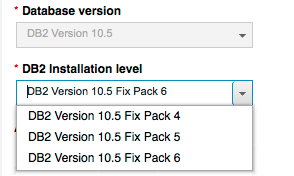
The first major change in this new version is the ability to specify the exact DB2 Fix Pack level within the Virtual System Pattern or at deployment time. Previously the Fixpack level was determined by the version of the pattern type that was installed and enabled in the catalog. As shown below, the DB2 software component now offers a selection of DB2 10.5 Fixpack 4, 5 or 6.

Note however that the 1.2.3.0 pattern type only contains the Fix Pack 6 binaries. The entries for Fix Pack 5 and Fix Pack 4 correspond to version 1.2.2.2 and 1.2.1.0 of the pattern type respectively. So if you would like to use Fix Packs 4, 5 and 6 you must have pattern types 1.2.1.0, 1.2.2.2 and 1.2.3.0 installed!

Finally, there is now an option to install a Fix Pack at deployment time as well. For example, when DB2 10.5 Fix Pack 7 ships you could simply deploy DB2 10.5 Fix Pack 6 and automatically apply Fix Pack 7 at deployment time (instead of applying this after deployment). I will add some more details about this here shortly.

Configure a Virtual IP Address for a DB2 HADR database

For some time we have been able to install and configure a DB2 database with HADR configured through a Virtual System Pattern using the DB2 software component and script packages. However we always had to rely on DB2 Automatic Client Re-routing (ACR) in order to leverage the additional increase in resilience delivered by HADR. In other words, each DB2 cilent must “know” about the hostname/IP address of both the primary and standby DB2 VM. The new pattern type introduces the ability to automatically configure and setup a Virtual IP Address (VIP) that can act as a single end point for the DB2 HADR database. In other words, a DB2 client only needs to be configured with the VIP and no longer requires knowledge of the individual primary and standby hostnames/IP addresses. The Virtual System Pattern Default DB2 OLTP Pattern with HADR and VIP for Linux provides a good starting point for using DB2 HADR with a VIP.

When examining the aforementioned Virtual System Pattern in more detail, you will notice that there is a new add-on DB2 VIP Linux add NIC used to assign an additional IP address to the Virtual System Instance at deployment time. This refers back to the name of the DB2 database that is to be configured with HADR. Note that the use of an add-on here is required in order to obtain an additional IP address from the IP group at deployment time.

Once deployed, the VIP from the DB2 HADR Virtual System Instance can be obtained from the stdout of the add-on DB2 VIP Linux add NIC. Note that this was from a deployment on PureApplication System, where eth0 is assigned to the cloud management network, eth1 to the data network and eth2 is used as second virtual network interface on the same data network.

*** searching for NIC with MAC address 00:50:56:ae:39:60
*** It is Red Hat Enterprise Linux Server release 7
*** iface eth2 has MAC address 00:50:56:ae:39:60
*** INTF=eth2
*** provided address 172.18.173.4 is of type IPv4
*** configuring eth2 with IP address 172.18.173.4/255.255.255.0
Adding New IP details to /etc/db2vip.conf
Database hadrdb will be configured with Virtual IP:
172.18.173.4
*** Not activating eth2

A final note on the implementation of DB2 HADR through the DB2 BLU Acceleration Pattern on PureApplication. IBM Tivoli System Automation (TSA) software is used to assign the role of primary and standby to the DB2 databases on both VMs. Some clients wonder what is used as the tiebreaker for TSA, as this is currently not documented in the IBM Knowledge Center. At deployment time, the pattern will obtain the default gateway of the IP group used for the data network (eth1 on PureApplication System) and this is configured as the tiebreaker. Ping requests are sent to the default gateway at regular internals, so the implication of this is that the default gateway and external network must allow for ICMP traffic!

monitoring – transferring custom situations

Originally posted on IBM Developer blog “Exploring PureApplication System, Software Service and more”  by Tom Bal on 11 September 2015 (6723 visits)

Most customers have multiple cloud group or multiple environment profiles with externally managed cloudgroups, – to segregate production from non-production instances, to support a cloud service for different departments, … – and within every cloud group, they provide some shared services.

It’s very likely they might even have created a so-called custom monitoring situation or a personal workspace. As these artifacts are not transferrable through the IBM PureApplication GUI, how can I get my favorite situation (i.e. monitor launching vi) and the workspace transferred from one of my cloud groups to the monitoring portal in the other cloud groups as a way to promote custom monitoring situation from within one environment to another, from non-production to production?

In this example we explain you how to export, delete and import a custom situation using the command line interface provided with the PureApplication monitoring shared service.

1. Login to the monitoring server as the sysadmin OS level user (password set at service creation time):

2. Go to /opt/IBM/ITMSS/bin and execute:

./tacmd login -s localhost -u sysadmin

and if you don’t add a password, you need to provide it at the prompt.
result:

KUIC00007I: User sysadmin logged into server on https://localhost:3661.

“KUIC00007I: User sysadmin logged into server on https://localhost:3661.”

3. Then issue:

./tacmd bulkExportSit

If you don’t provide a path where the artifacts should be exported to, it’ll take the current working directory just make sure you have the rights to create a directory “Bulk” at the working location or the one you specified. If not, please make sure you export to a location where you have those rights.

Result:

KUIBSE015I: All of the situations were successfully exported from the managed server at https://localhost:3661 to the application-specific subdirectories of /opt/IBM/ITMSS/bin/Bulk/SITUATION."
(55E83D90.0011-1:kbbssge.c,52,"BSS1_GetEnv") HOME="/home/sysadmin

5. The Bulk directory will contain (in my case only Situations):
Situation subdirectory (extract):

S1:
KS1_Avg_Meeting_Startup_Long..xml KS1_Large_Number_User_Logins.xml KS1_Server_Login_Long.xml
KS1_Cluster_Down_Crit.xml KS1_Login_Operation_Failures.xml KS1_Server_Not_Running_Crit.xml
KS1_Few_Meeting_Connect_Remain.xml KS1_Meeting_No_Participant.xml
KS1_File_Transfer_Failures.xml KS1_Process_Not_Running.xml

… and many more.

One of them being my situation:

By the way, IBM recommends to run these commands using the root user as this lifts potential issues with user rights and (file or directory) access.

Next step could be to delete this situation and/or to import this situation (or all situations) into an existing PureApplication Monitoring shared service using the tacmd bulkImportSit.

Of course, if you are able to run those monitoring portal CLI commands remotely (from another instance), don’t forget to replace the localhost parameter.

More information

Check out the available monitoring portal CLI commands:
http://www-01.ibm.com/support/knowledgecenter/SSTFXA_6.2.3.1/com.ibm.itm.doc_6.2.3fp1/itm623fp1_cmdref11.htm%23tacmd?lang=en

In particular, look for these commands:

  • tacmd bulkExportSit
  • tacmd exportSitAssociations
  • tacmd exportSysAssignments
  • tacmd exportQueries
  • tacmd exportWorkspaces

What did we describe here?

Using the command line tools provided with the PureApplication Monitoring shared service Portal, a monitoring administrator can easily define monitoring situations in one cloud group and transfer these to another cloud group or to another PureApplication Monitoring shared service instance.

Deploying WAS 8.5.5.2 or 8.0.0.9 on PureApplication V2.1 or higher

Originally posted on IBM Developer blog “Exploring PureApplication System, Software Service and more”  by Hendrik van Run on 19 August 2015 (5833 visits)

IBM provides a set of packages for the built-in IBM Installation Manager (IIM) Repository on PureApplication System. In V2.1, this set of packages contained binaries for WAS 8.0.0.10 and WAS 8.5.5.4. You can easily add higher Fix Packs to the IIM Repository. However it is not straightforward to deploy WAS 8.0.0.9 or WAS 8.5.5.2 when you have bought a PureApplication System at V2.1 from IBM.

The good news however is that there is a supported solution, and that is to download and import the equivalent packages that IBM released at the time of PureApplication System V2.0. The file “was80098552PowerIntelDefaultData.tgz” contains the set of packages from PureApplication System V2.0 and contains binaries for WAS 8.0.0.9 and WAS 8.5.5.2. It can be obtained from IBM Fix Central and imported as follows:

1. Select the following options on IBM Fix Central and click Continue.

2. Select Browse for Fixes and click Continue.

3. Search for “Group_Fix_PureApplication_System_2.0.0.0_Intel” and “Group_Fix_PureApplication_System_2.0.0.0_Power”. Select the corresponding one for your platform and click Continue.

4. Look for the aforementioned files in the list and download both of them.

5. Once downloaded, validate the sha1sum checksum of the .tgz file.

-bash-4.1# cd /repository/WAS80098552/
-bash-4.1# ls -1
was80098552PowerIntelDefaultData.tgz.sha1sum
was80098552PowerIntelDefaultData.tgz

-bash-4.1# shasum was80098552PowerIntelDefaultData.tgz
d5dea032c480972fcf7365345528a26a3cd42650 was80098552PowerIntelDefaultData.tgz
-bash-4.1# cat was80098552PowerIntelDefaultData.tgz.sha1sum
d5dea032c480972fcf7365345528a26a3cd42650 *was80098552PowerIntelDefaultData.tgz

6. Now use the PureApplication System CLI to and import the .tgz file into the built-in IIM Repository.

-bash-4.1# pure -a -h <psm> -u <user>
Password:
>>> deployer.imrepositories.uploadPackageFromLocal("WebSphere","/repository/WAS80098552/was80098552PowerIntelDefaultData.tgz")
{'success': ['com.ibm.websphere.IBMJAVA.v70_7.0.6001.20140324_2202', 'com.ibm.websphere.IBMJAVA.v71_7.1.0.20140324_2146', 'com.ibm.websphere.IHS.v80_8.0.9.20140530_2152', 'com.ibm.websphere.IHS.v85_8.5.5002.20140408_1947', 'com.ibm.websphere.ND.v80_8.0.9.20140530_2152', 'com.ibm.websphere.ND.v85_8.5.5002.20140408_1947', 'com.ibm.websphere.PLG.v80_8.0.9.20140530_2152', 'com.ibm.websphere.PLG.v85_8.5.5002.20140408_1947', 'com.ibm.websphere.W2MTK.v11_1.1.5.20131010_1514', 'com.ibm.websphere.WCT.v80_8.0.9.20140530_2152', 'com.ibm.websphere.WCT.v85_8.5.5002.20140408_1947', 'com.ibm.websphere.WEB2MOBILE.v11_1.1.4.20130613_1555', 'com.ibm.websphere.WXSCLIENT.was8.v86_8.6.5.20140607_0347', 'com.ibm.websphere.liberty.IBMJAVA.v60_6.0.7001.20140408_2040', 'com.ibm.websphere.liberty.IBMJAVA.v70_7.0.6001.20140324_2202', 'com.ibm.websphere.liberty.IBMJAVA.v71_7.1.0.20140324_2146', 'com.ibm.websphere.liberty.ND.v85_8.5.5002.20140408_2239'], 'fail': []}

7. Once the import has completed, you should be able to see the new WAS Fix Packs in the built-in IIM Repository. Go to System > IBM Installation Manager, expand the category “WebSphere” and review the Fix Packs available for the as shown below.

8. With the packages installed, you should now be able to use them in the Pattern Editor as shown below.

One final remark, the limitations stated here are not completly true. In particular the following:

“You must have WebSphere Application Server V8.5.5.4 to use WebSphere Application Server Patterns Version 1.0 Fix Pack 3 (also known as V1.0.0.3) templates and higher templates.”

The WebSphere Application Server Patterns Version 1.0 Fix Pack 3 (i.e. pattern type 1.0.0.3, the same applies to 1.0.0.4 which I blogged about here earlier) requires WAS 8.5.5.4 to be present in the IIM repository used. However these pattern versions still work fine if you also add an older version to that repository (i.e. WAS 8.5.5.2). The requirement is simply that WAS 8.5.5.4 must be present.

Note: Of course you can also build and import your own packages using the IBM Packaging Utility as documented here.

New version of IBM DB2 with BLU Acceleration Pattern includes DB2 10.5 Fix Pack 5

Originally posted on IBM Developer blog “Exploring PureApplication System, Software Service and more”  by Hendrik van Run on 4 August 2015 (5454 visits)

Some clients have been looking to run DB2 10.5 Fix Pack 5 on PureApplication as it brings a number of significant enhancements to DB2. The Pattern Type “DB2 with BLU Acceleration Pattern” delivers the Software Component and Virtual System Patterns to run DB2 10.5. This Pattern Type started shipping with PureApplication V2.0, you can find more information in the Knowledge Center here.  The most recent version of this Pattern Type  that shipped with PureApplication 2.1.0.1 was 1.2.1.0. When deploying a Virtual System Pattern with the DB2 Software Component, it will deploy DB2 10.5 Fix Pack 4.

On 24th July IBM released version 1.2.2.0 of the aforementioned Pattern Type. Amongst other things, this Pattern Type now ships with DB2 10.5 Fix Pack 5. It also addresses an issue that was preventing DB2 HADR when using the RHEL 7 based IBM OS Image for Red Hat Linux Systems version 3.0.1.0 (link). Note however that this Pattern Type is compatible with both Intel and POWER based PureApplication System models. The new Pattern Type can be hard to find on Fix Central, since it does not show up under fixes for PureApplication. Use this link instead to find all versions of the Pattern Type, including 1.2.2.0. Import the new Pattern Type using the CLI, then accept the license agreement and enable the pattern type.

>>> newpattern = deployer.patterntypes.create("/tmp/DB2withBLUAccelerationPattern-1.2.2.0.tgz")
>>> newpattern[0].acceptLicense()
{'status': 'accepted'}
>>> newpattern[0].enable()
{'status': 'avail'}
>>>

When you now use the DB2 Software Component in the Pattern Editor, note that the version of DB2 is now 10.5 Fix Pack 5.

IBM WSRR 8.5.5 Virtual System Pattern

Originally posted on IBM Developer blog “Exploring PureApplication System, Software Service and more”  by Hendrik van Run on 14 July 2015 (5138 visits)

IBM released WSRR (WebSphere Services Registry and Repository) 8.5.5 earlier this year in March. You can find a brief summary of new features here.

Even though this was released some time ago, I wanted to take the opportunity highlight the new Virtual System Pattern that was delivered in April. You can find more details on this page in the Knowledge Center,  the diagram below shows what the pattern looks like. Note that the pattern re-uses the existing DB2 10.5 Software Components, so if you are familiar with those it will make working with WSRR on PureApplication even easier.

Clients who have entitlement for WSRR can use this PureApplication pattern free of charge. Also note that this pattern is available for both Intel and POWER based PureApplication Systems (as well as PureApplication Service on SoftLayer and PureApplication Software). You can find the pattern on Passport Advantage using the following name or part number:

  • WebSphere Service Registry and Repository 8.5.5 on Pure Application System Multiplatform Multilingual (CN56JML)

IBM Integration Bus 10.0 Virtual System Patterns

Originally posted on IBM Developer blog “Exploring PureApplication System, Software Service and more”  by Hendrik van Run on 13 July 2015 (5334 visits)

A Virtual System Pattern for IBM Integration Bus (IIB) 10.0 has been out for a while. This pattern is based on IIB 10.0.0.0 and is still available from Passport Advantage:

  • IBM Integration Bus Pattern v10 for PureApplication Multiplatform Multilingual (CN5FLML)

More recently, IBM released an updated version of this Virtual System Pattern. This pattern is based on IIB 10.0.0.1 and supports integration with the recently  released IBM MQ 8.0 Virtual System Pattern (see my previous blog post here). My colleague Simon Holdsworth posted about this new pattern here, the diagram from his post below illustrates the integration with IBM MQ:

Refer to this page in the Knowledge Center for more information about the IIB 10.0.0.1 Virtual System Pattern. This pattern is available through Passport Advantage, see below for the corresponding name and part number:

  • IBM Integration Bus Advanced 10.0.0.1 Pattern Type for IBM PureApplication System Multiplatform Multilingual (CN693ML)

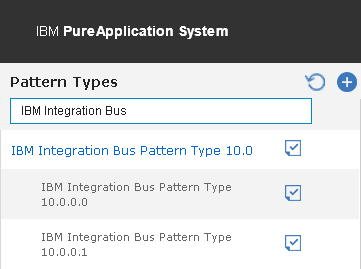
Finally, the diagram below shows both patterns alongside after importing them in a PureApplication System environment.

Design a site like this with WordPress.com
Get started